How to Control Mermaid Subgraph Direction
Use flowchart LR for a left-to-right diagram and direction TB inside a subgraph for a top-to-bottom group. External edges attached directly to the group’s internal nodes can make that local direction ineffective.
Give a group its own direction
flowchart LR
  client["Client"] --> pipeline
  subgraph pipeline["Processing"]
    direction TB
    validate["Validate"] --> save["Save"] --> notify["Notify"]
  end
  pipeline --> receipt["Receipt"]
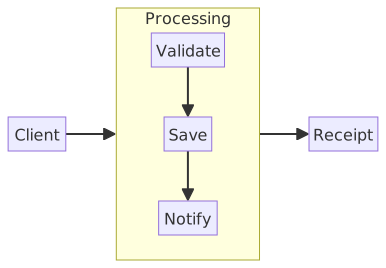
The outer flow travels from Client to Processing to Receipt. The processing steps are stacked inside the group. Notice that the external edges target pipeline, the subgraph ID.
See why an internal connection changes the layout
flowchart LR
  client["Client"] --> validate
  subgraph pipeline["Processing"]
    direction TB
    validate["Validate"] --> save["Save"] --> notify["Notify"]
  end
  notify --> receipt["Receipt"]
Here the external connections name validate and notify directly. Compare it with the first example: the local direction can be overridden by the parent direction.
What to watch for
Choose the connection that describes your system accurately. Use group-level edges if a connection belongs to the whole subsystem. If the relationship specifically targets an internal step, keep that edge and accept the layout constraint, or split the drawing into an overview and a detail diagram.
Direction is a layout hint, not an exact coordinate system. Test your diagram in the renderer where it will be published. These examples use the default flowchart renderer in this playground.
Related guides
Reference: Official documentation.