How to Change Node Colors in Mermaid
Use classDef to define reusable node styles, then assign them with class. For a single node, style nodeId is a quick alternative.
Apply colors to several nodes
flowchart LR
  queued["Queued"] --> running["Running"] --> done["Complete"]
  running --> failed["Failed"]
  classDef active fill:#dbeafe,stroke:#1d4ed8,color:#172554
  classDef success fill:#dcfce7,stroke:#166534,color:#14532d
  classDef error fill:#fee2e2,stroke:#b91c1c,color:#7f1d1d
  class queued,running active
  class done success
  class failed error
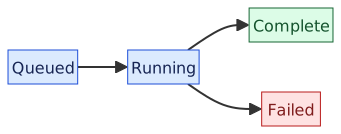
Queued and Running share a blue style. Complete is green and Failed is red. The labels still communicate status when colors are hard to distinguish.
Highlight one node without a class
flowchart LR
  browser["Browser"] --> api["API"] --> database["Database"]
  style api fill:#fef3c7,stroke:#92400e,stroke-width:3px,color:#451a03
The API box has an amber background and a thicker border. Change api after style to highlight a different node.
What to watch for
Use the node ID, not the displayed label, when assigning a class or style. Set text color together with the fill so a theme change does not leave pale text on a pale box. For a larger diagram, reuse classes rather than copying the same style to each node.
These rules target flowchart nodes. They do not automatically style sequence-diagram participants or change the lines connecting nodes. Keep one clear style assignment per node while troubleshooting.
Related guides
- How to Add Line Breaks in Mermaid Labels
- How to Control Mermaid Subgraph Direction
- Mermaid cheatsheet
Reference: Official documentation.